
Microsoft Teams Shared Channels - Create Shared Channels - Part 2
In the second part, we will show you how to create new teams and channels in your Microsoft Teams.
In the first part, you will learn how to configure the basic settings for a B2B Direct Connect. Click here for Part 1.
One of the latest features of Microsoft Teams is Shared Channels, which allow teams to seamlessly collaborate with external users / tenants and teams. In this blog post, we will take a closer look at Microsoft Teams Shared Channels and how to set them up.
What are Shared Channels?
Shared Channels are channels that teams inside and outside of your organisation can share. This means that users from two different teams can access the same channel and collaborate in real-time. This is particularly useful when you want to work with external teams or clients without having to create separate channels every time.
Now you can set up your first "Shared Channel" in Teams
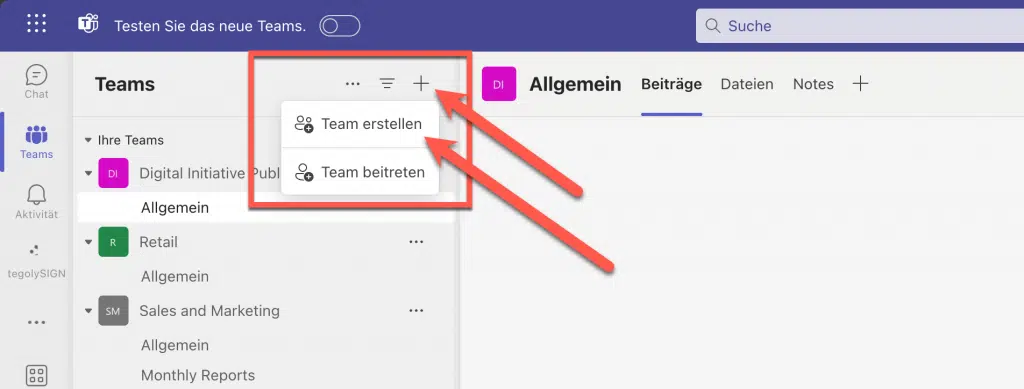
Create a new team. Click on the plus + icon and select Create a team.
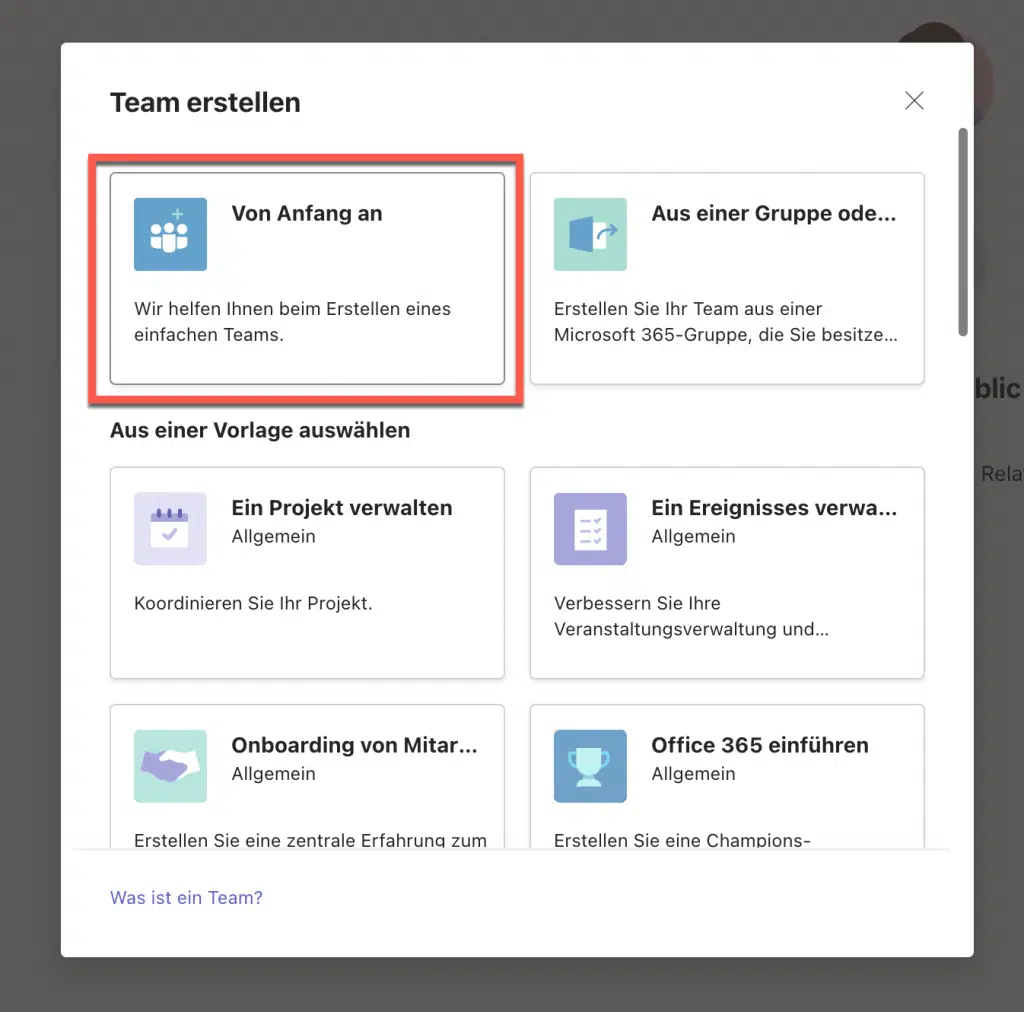
In the new window, select From scratch.
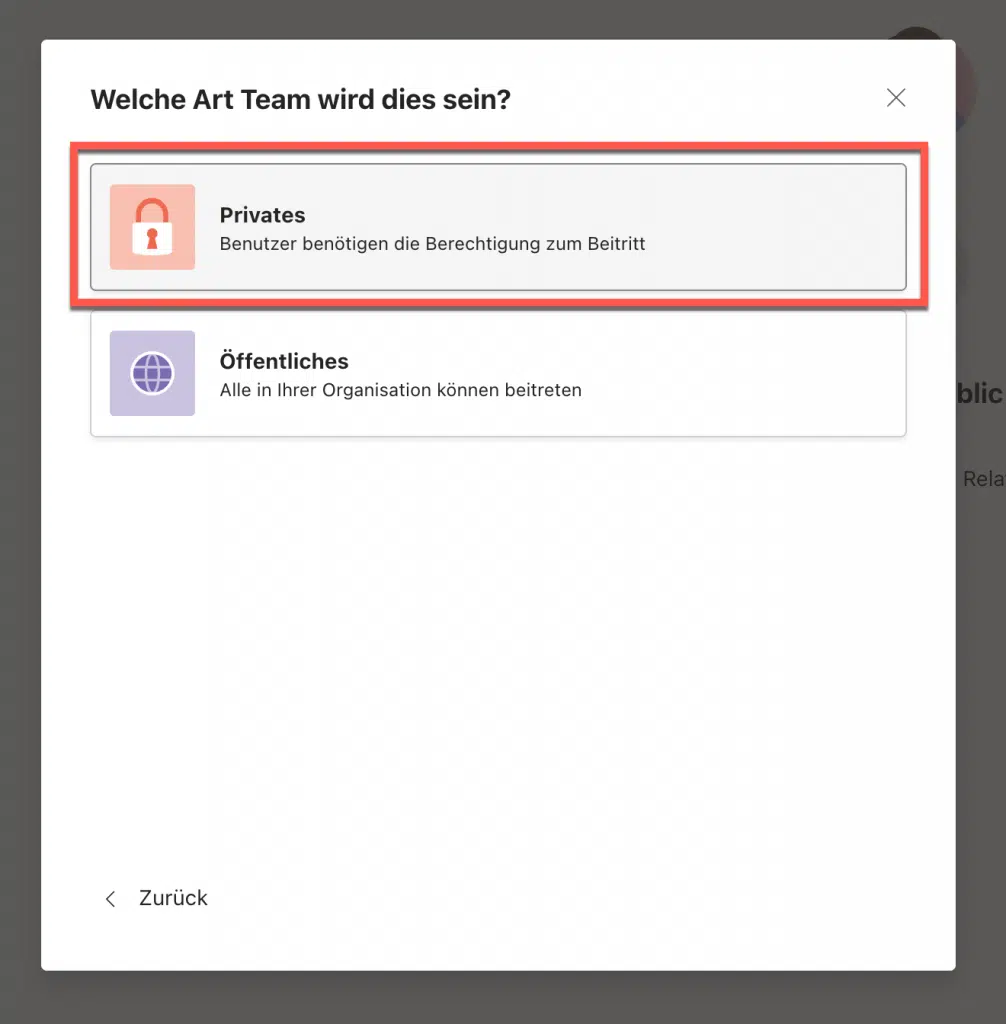
For the team type, select Private.
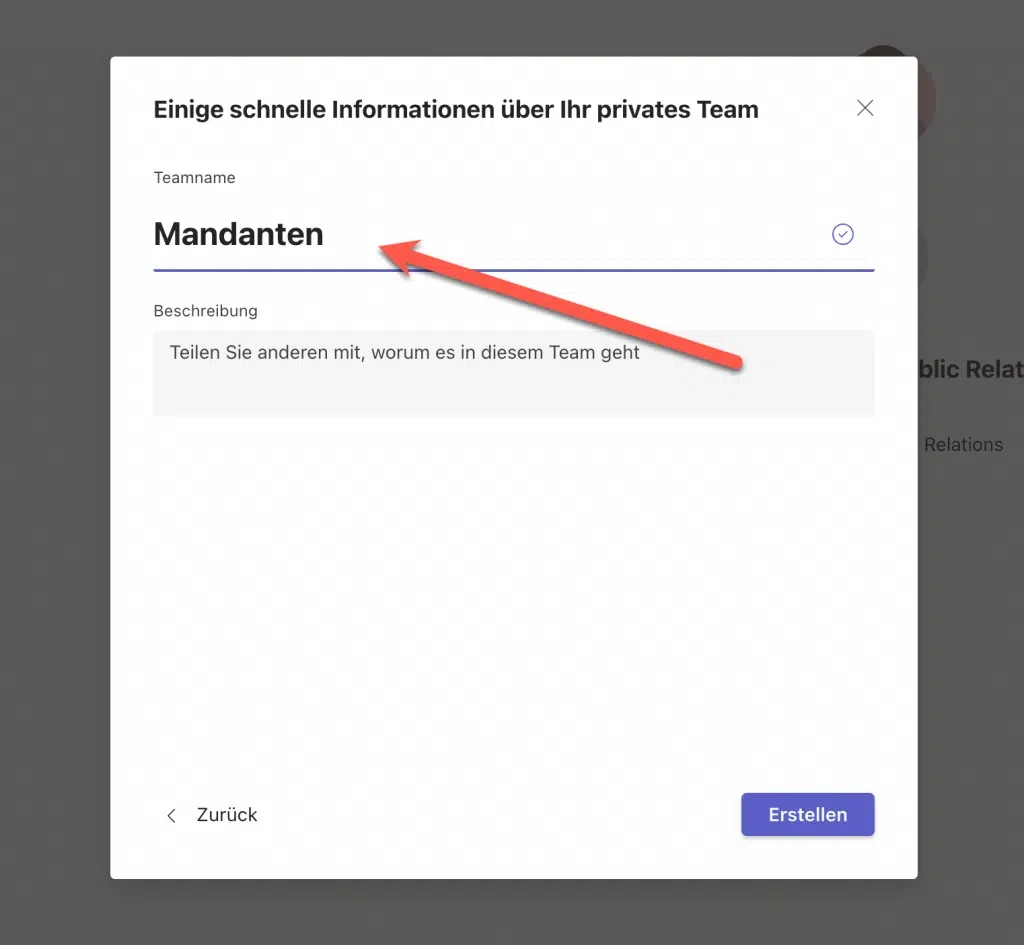
Enter a name for the team. In our example, we have named the team Tenants, as we will create all tenants with a channel under this team.
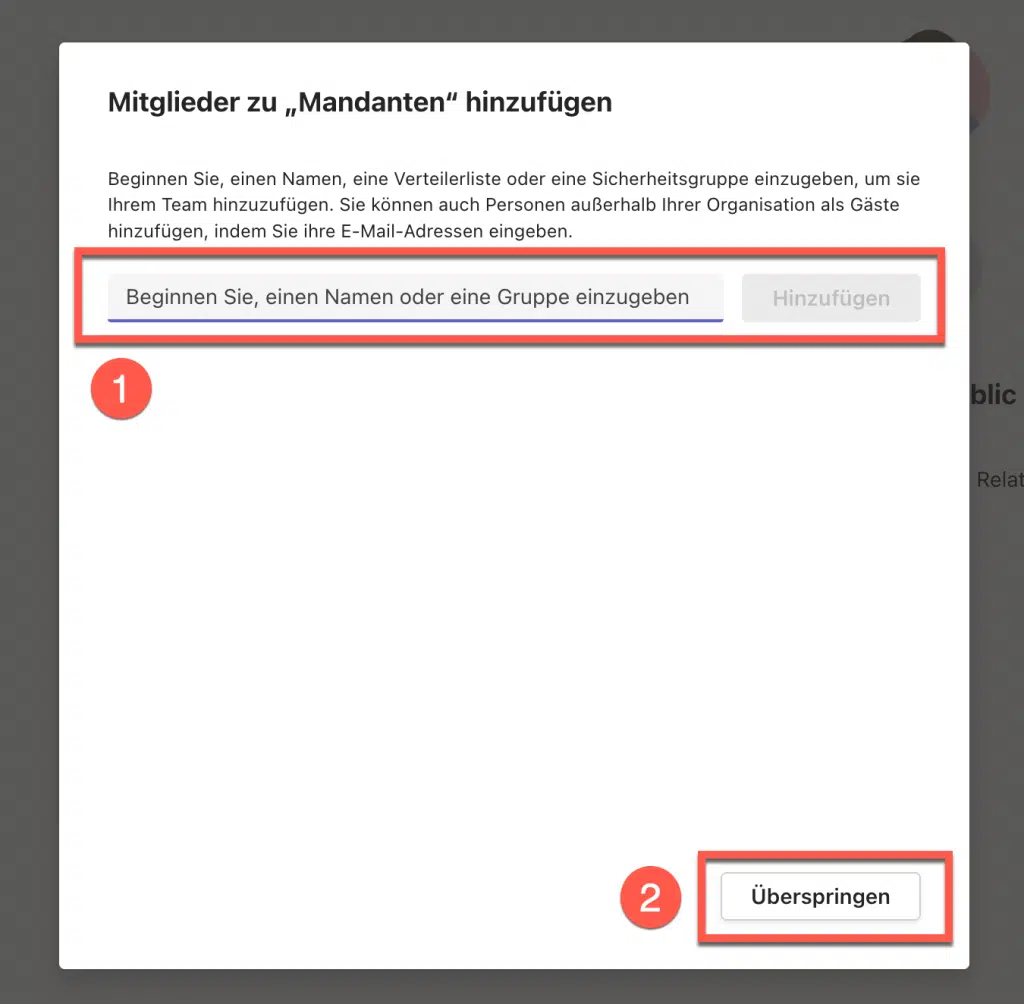
In the next step, you can already add members for the team; in our example, we will do this later when we add the channels. So, select Skip.
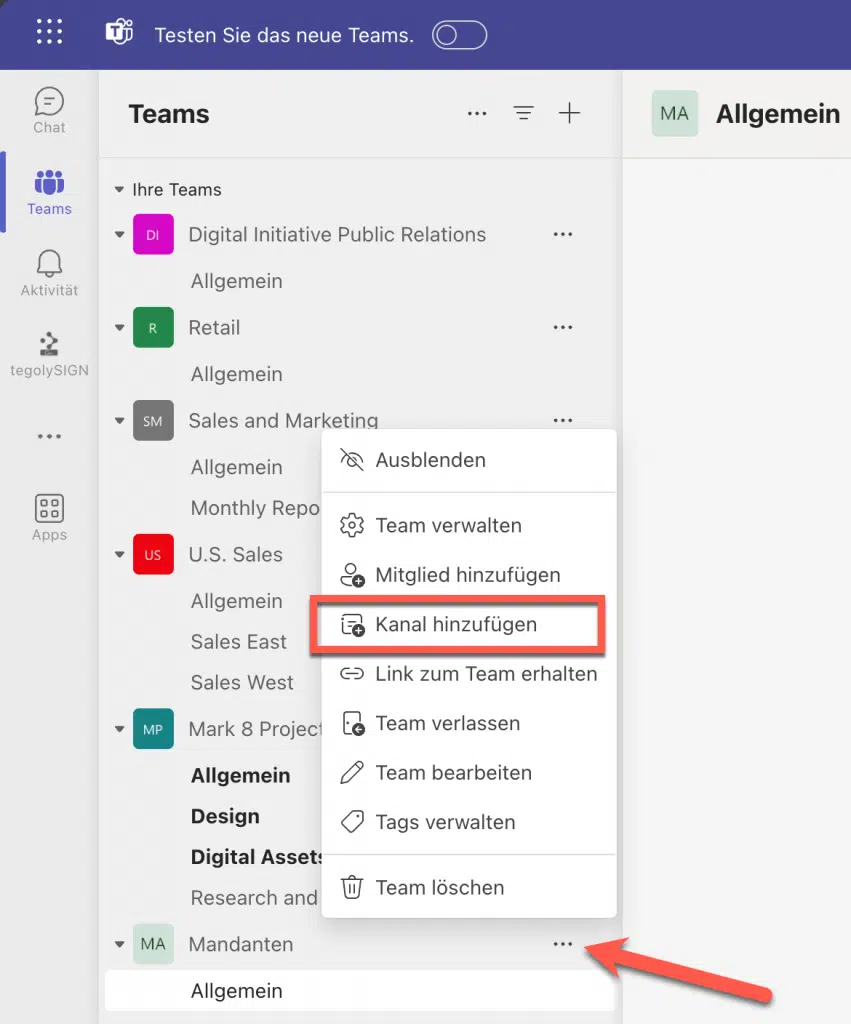
Go to the three dots (…) next to the team name and select Add channel.
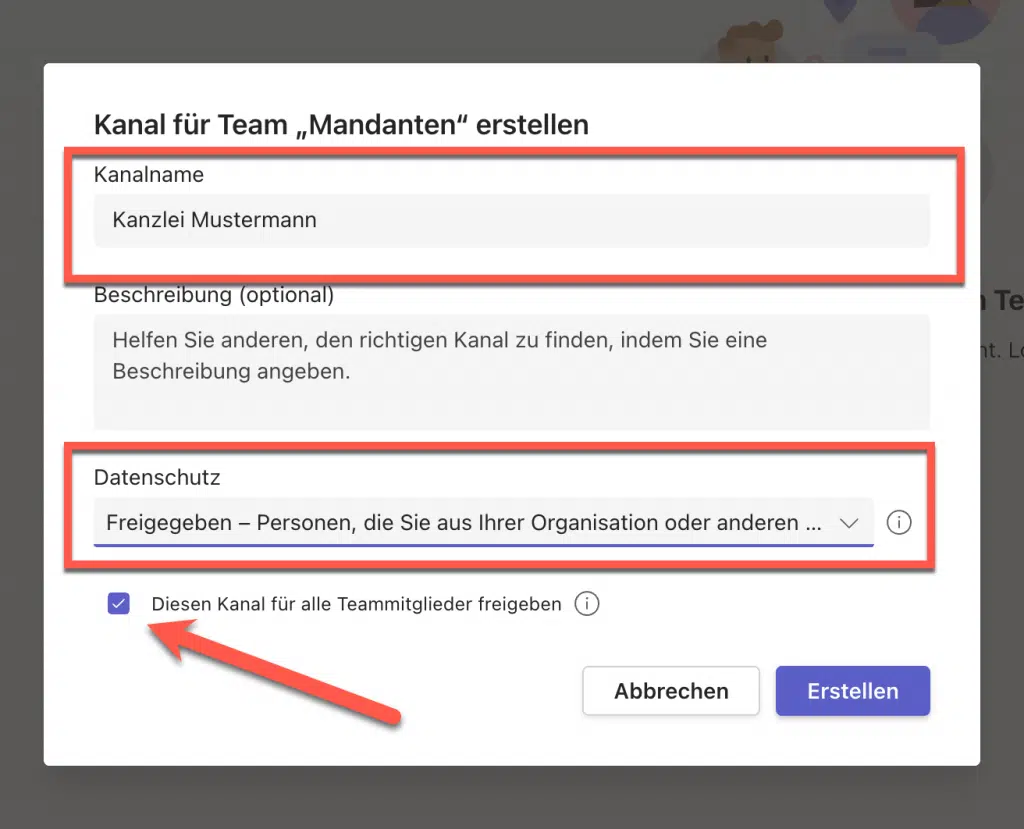
Assign a name to the channel and select Shared under privacy.
Now you can also select whether to allow all team members to see and access this channel. If you do not want to share this channel with your team, or only want to share it with specific people, disable this option.
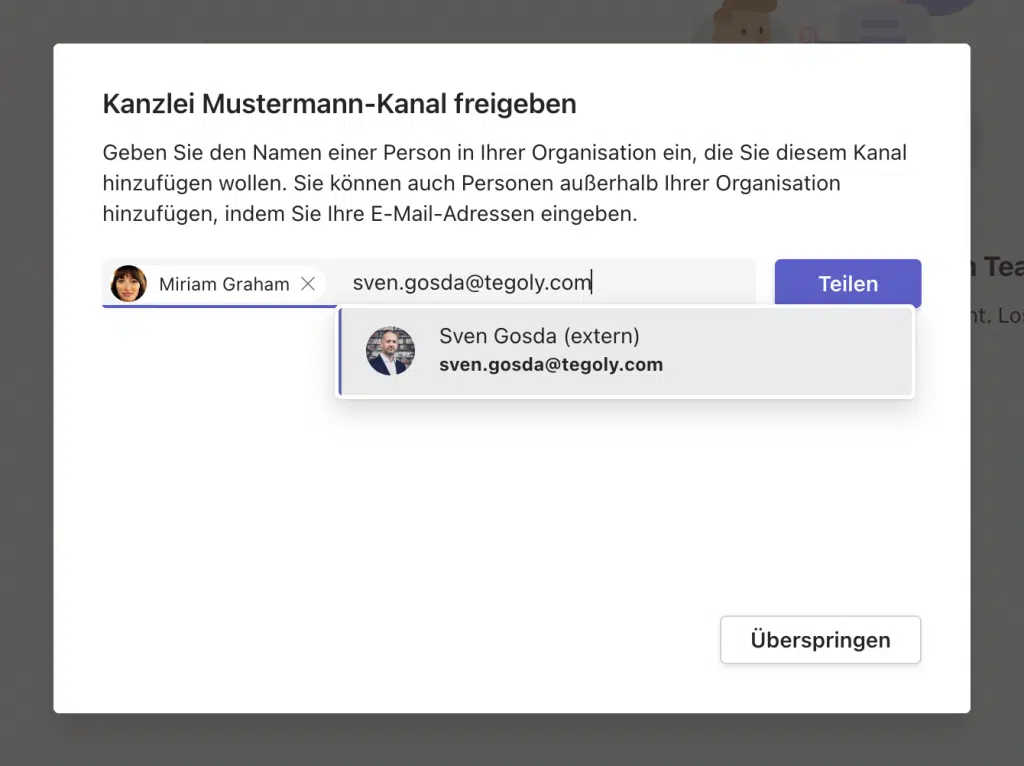
Choose the people who should be members of the channel. For external members, you must type the email in full and press enter.
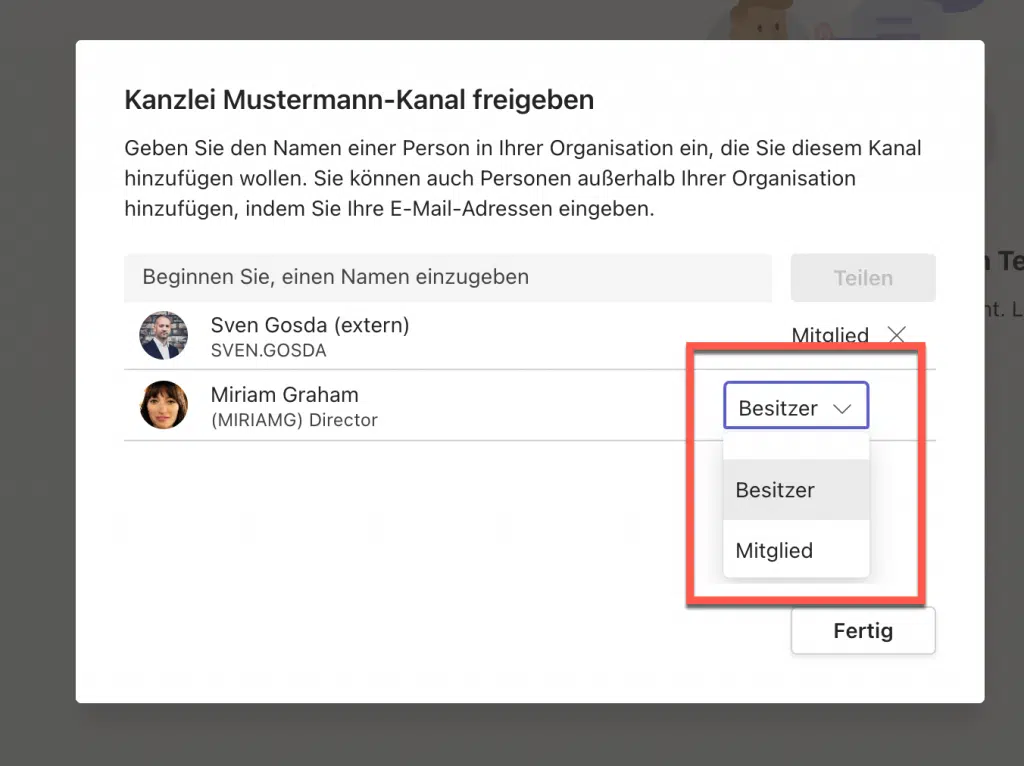
In the last window, you can assign roles to the members. Here you can find more information about roles: Shared channel owner and member roles in Microsoft Teams – Microsoft Support
Congratulations, you have now created a team with a shared channel where you can collaborate with your tenants.
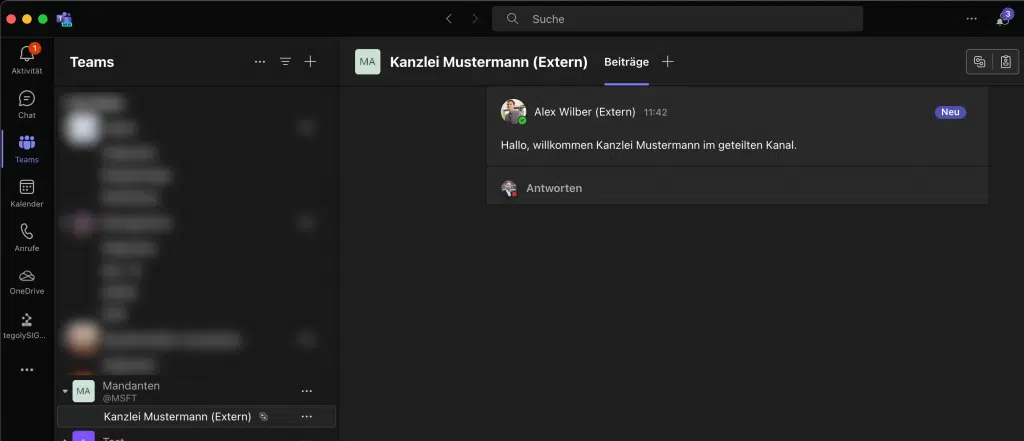
Done!
Conclusion
Shared Channels in Microsoft Teams are a powerful feature that allows teams to seamlessly collaborate with external users and teams. However, setup requires some technical settings and adjustments. By following the steps above, however, you can easily integrate Shared Channels into your workflows and ensure seamless collaboration inside and outside your company.
What are Shared Channels?
Shared Channels are channels that teams inside and outside of your organisation can share. This means that users from two different teams can access the same channel and collaborate in real-time. This is particularly useful when you want to work with external teams or clients without having to create separate channels every time.
What is the difference to other ways of sharing channels?
Shared channels are channels that teams inside and outside your organisation can share. They enable seamless collaboration between different teams and are useful when you want to collaborate with external teams or clients without having to create separate channels every time. Shared channels are particularly useful when collaborating with external teams as you can ensure they access the same channel and stay up to date.
What actions can be performed in Shared Channels?
Here you will find a list of almost all possible actions that can be performed with Shared Channels.