
Microsoft Teams Shared Channels - Create Shared Channels - Part 1
In today's working world, working together flexibly and effectively has become increasingly important, especially in times of remote work and global teams. This is where Microsoft Teams comes in – a platform that enables teams to communicate and collaborate seamlessly, regardless of their location and working styles.
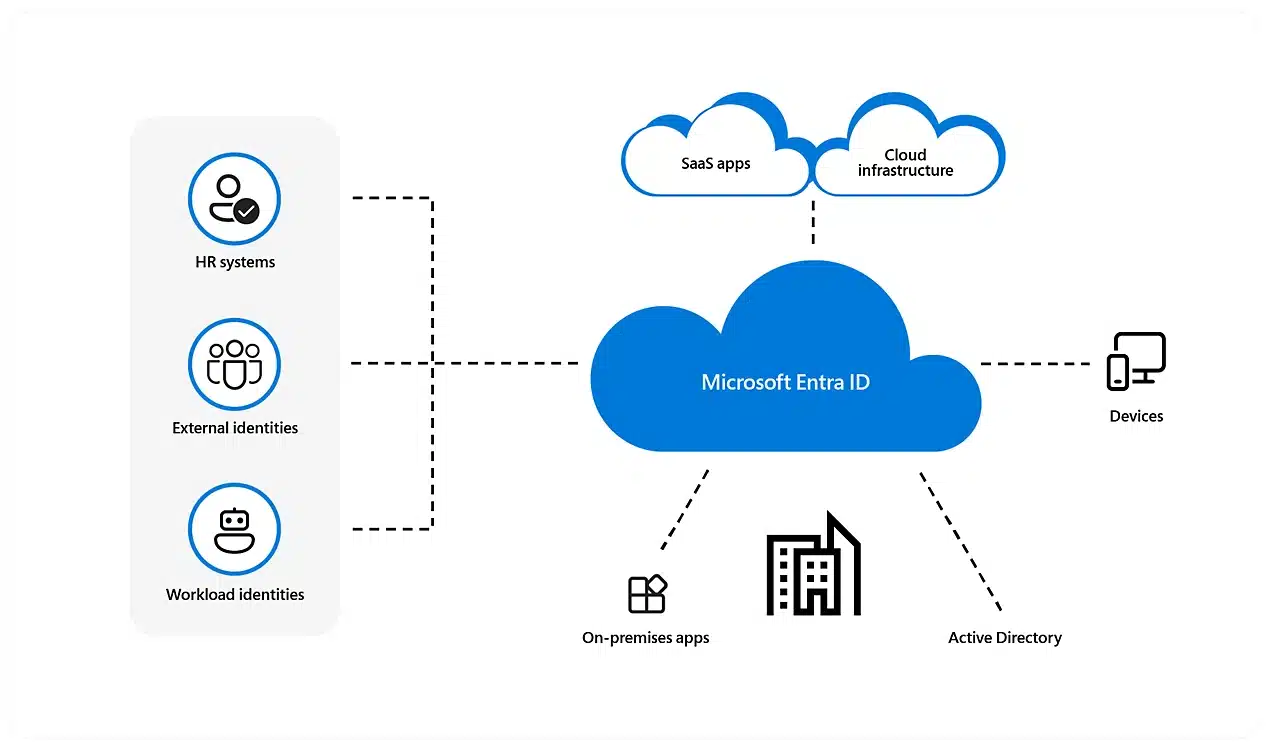
One of the latest features of Microsoft Teams is Shared Channels, which allow teams to collaborate seamlessly with external users / tenants and teams. In this blog article, we will take a closer look at Microsoft Teams Shared Channels and how they can be set up.
What are Shared Channels?
Shared Channels are channels that teams inside and outside of your organisation can use together. This means that users from two different teams can access the same channel and collaborate in real time. This is particularly useful if you want to collaborate with external teams or clients without having to create separate channels every time.
What is the difference compared to other ways of sharing channels?
In Microsoft Teams, there are several ways to share channels, including private channels, guest users, and public channels. Here are the differences between these methods and Shared Channels:
Private channels: Private channels are channels within a team that are only accessible to specific members. They are useful for sharing confidential information and ensuring that only the required individuals can access this information. However, private channels can only be created within the same team and cannot be shared between different teams.
Guest users: Guest users are users outside your organisation whom you can invite to your team. They have limited access to team resources and cannot access other teams. Guest users can access channels within the team, but they cannot share channels in their own team.
Shared Channels: Shared Channels are channels that teams inside and outside your organisation can use together. They enable seamless collaboration between different teams and are useful when you want to collaborate with external teams or clients without having to create separate channels each time. Shared Channels are particularly useful when collaborating with external teams as you can ensure everyone is accessing the same channel and staying up to date.
Options | Shared channels | Private channels | Public channels |
|---|---|---|---|
External individuals without a guest account can be members. | Yes | No | |
Guest users can be members. | No | Yes | Yes |
Requires membership in the channel's team. | No | Yes | Yes |
External individuals/guests can see all public channels of the team. | No | Yes | Yes |
Is open and accessible to all members of the team. | No | No | Yes |
Provides exclusive access to only a single channel of the team. | Yes | No | No |
Can be shared with other teams. | Yes | No | No |
Provides increased data protection. | Yes | Yes | No |
External individuals/guests must switch tenants to use the channel. | No | Yes | Yes |
Requires the use of B2B Direct Connect. | Yes | No | No |
All MS Teams apps are available. | No | No | Yes |
What actions can be performed in Shared Channels?
The following table describes what actions owners, members, and guests can perform in shared channels.
Action | Team owner | Team member | Team guest | Shared channel owner | Shared channel member | External shared channel participant |
|---|---|---|---|---|---|---|
Create shared channel | Controlled by administrator | Controlled by administrator and team owner | No | Not applicable | No | No |
Delete shared channel | Yes | No | No | Yes | No | No |
Leave shared channel | Not applicable | Not applicable | Not applicable | Yes, unless they are the last owner | Yes | Yes |
Edit shared channel | No | Not applicable | Not applicable | Yes | No | No |
Restore deleted shared channel | Yes | No | No | Yes | No | No |
Add members | No | Not applicable | Not applicable | Yes | No | No |
Edit settings | No | Not applicable | Not applicable | Yes | No | No |
Manage tabs and apps | No | Not applicable | Not applicable | Yes, apps must be installed for the team | Controlled by channel owner | No |
How are Shared Channels set up?
Setting up Shared Channels in Microsoft Teams requires several steps and settings. We will show you how to do it step by step.
Go to your Teams Admin page and check whether Shared Channels are enabled in the Global Policy. (admin.teams.microsoft.com)
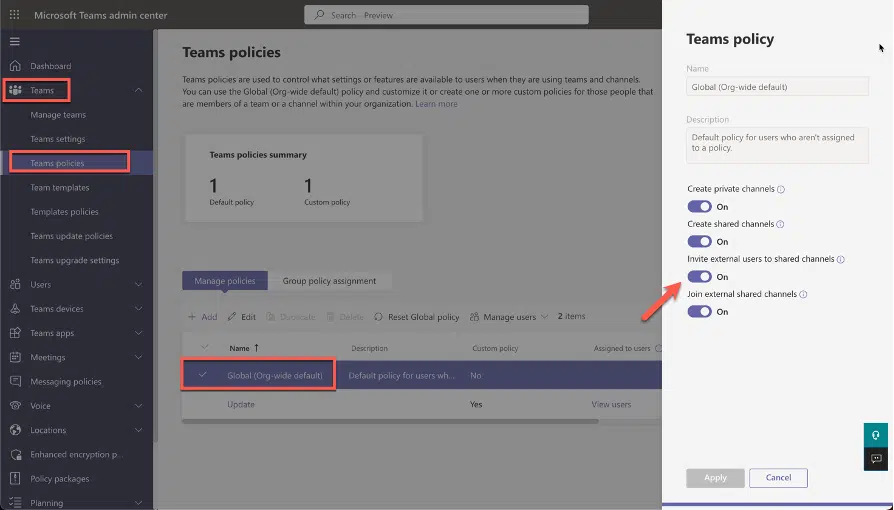
Go to your Teams Admin page and check whether Shared Channels are enabled in the Global Policy. (admin.teams.microsoft.com)
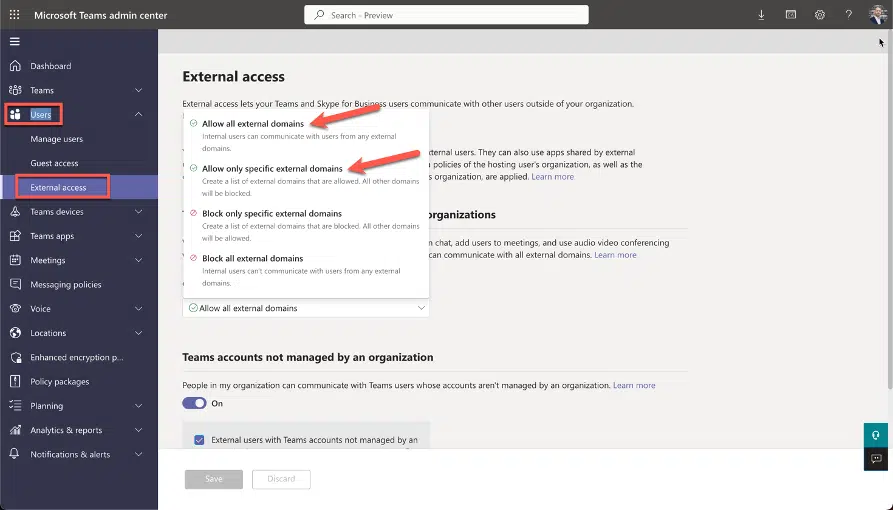
How to set up B2B Direct Connect
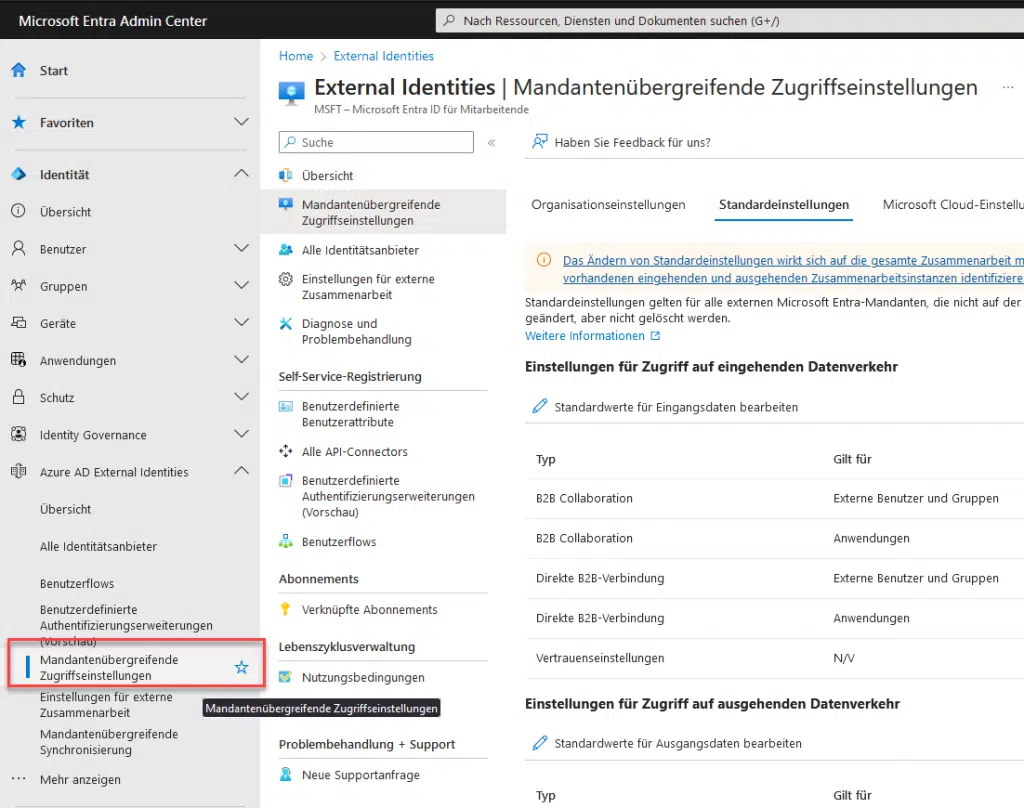
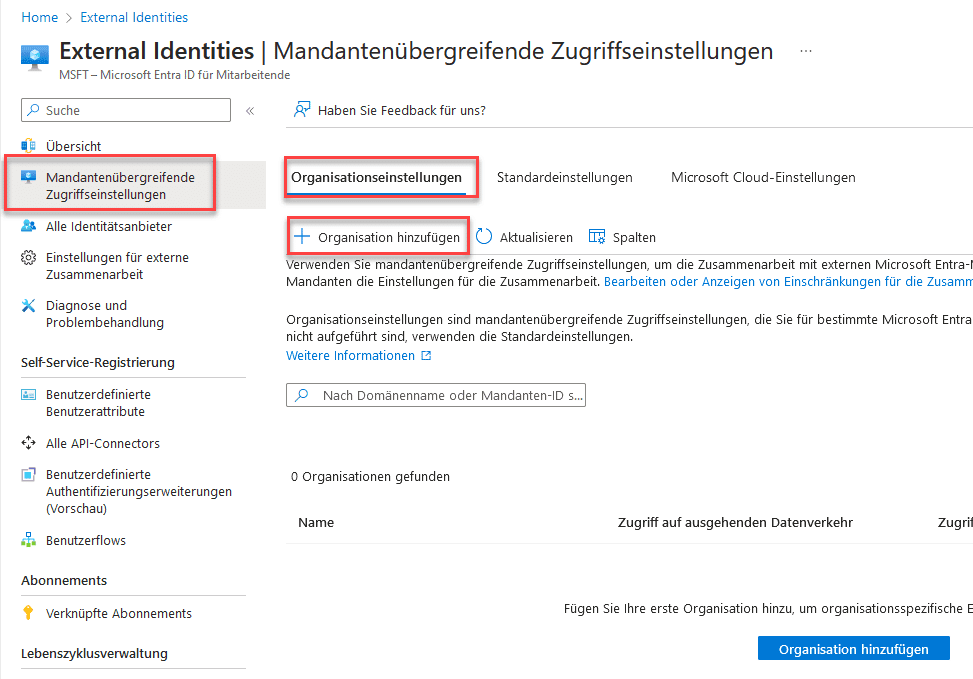
First, you must create the new organisation with which you want to collaborate. Go to your Entra Portal (at entra.azure.com), navigate to External Identities, and then "Cross-tenant access settings". Select "Add organisation" and add the organisation with the domain name (e.g. microsoft.com). Click "Add". Done.
Here you can find the current instructions from Microsoft: Collaborate with external participants in a shared channel (IT Admins) | Microsoft Learn
Microsoft Entra
Open your Admin Center or go directly to entra.azure.com.
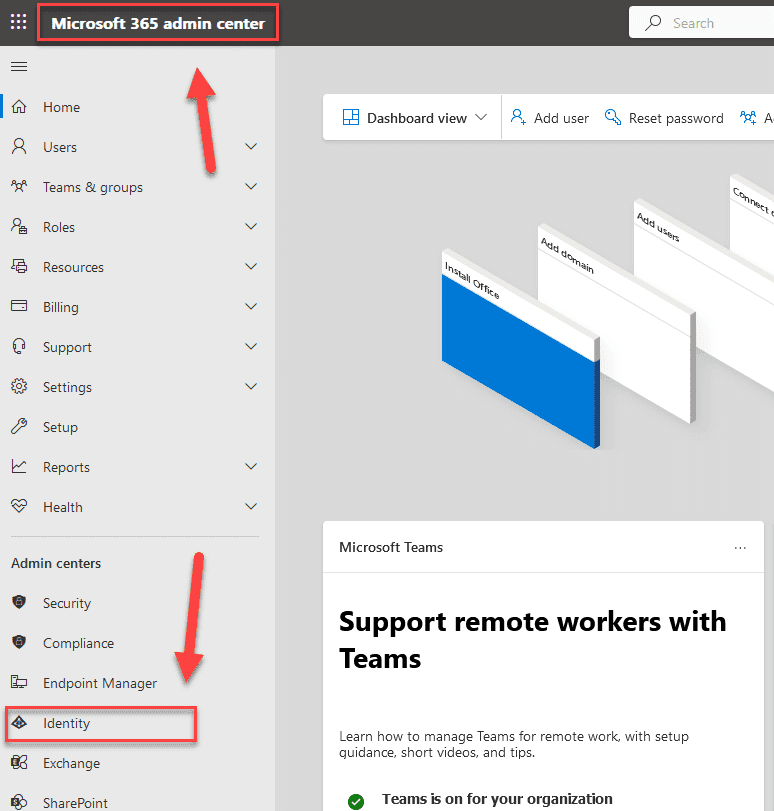
Go to Microsoft Entra External Identities here.
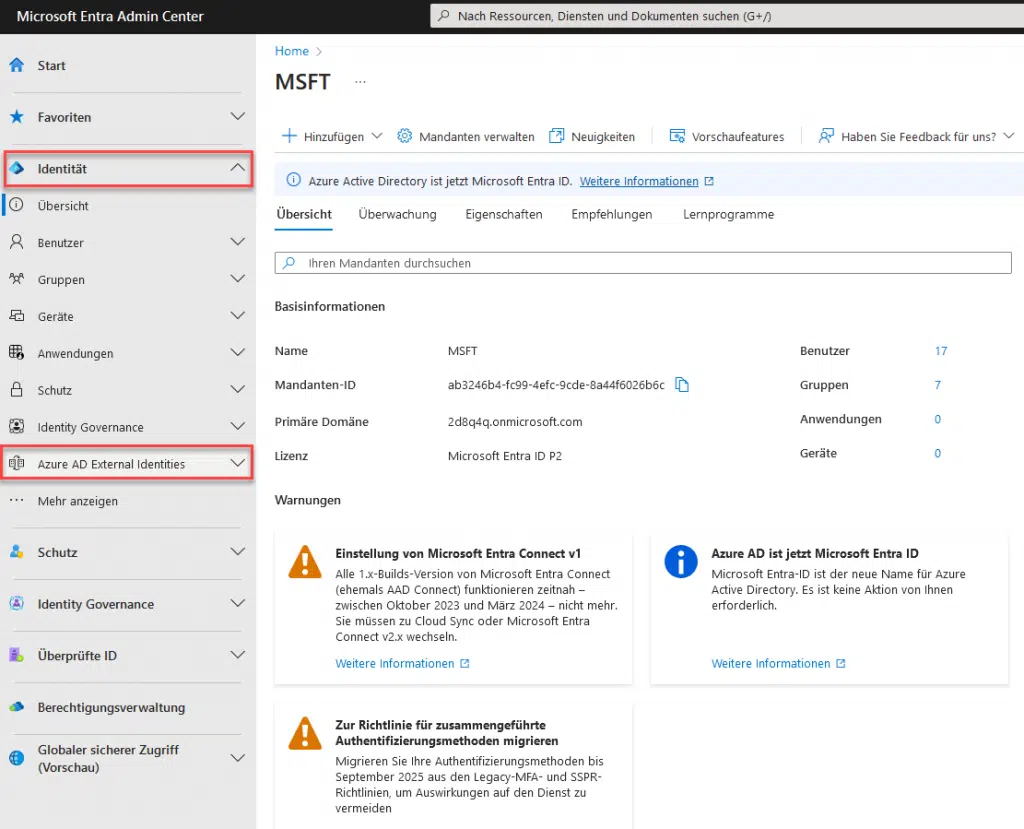
Now go to Cross-tenant access settings.
Now add the organisation you want to connect with. Go to Organisational settings and then to Add organisation.
Add the organisation via the tenant ID or domain name (such as domain.com). Click save at the bottom.
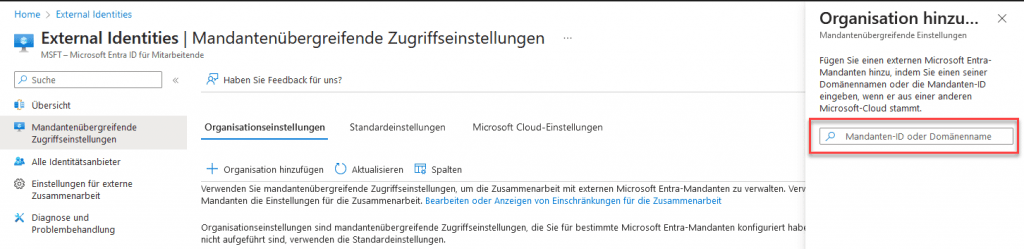
If everything has worked, the organisation should be set up.
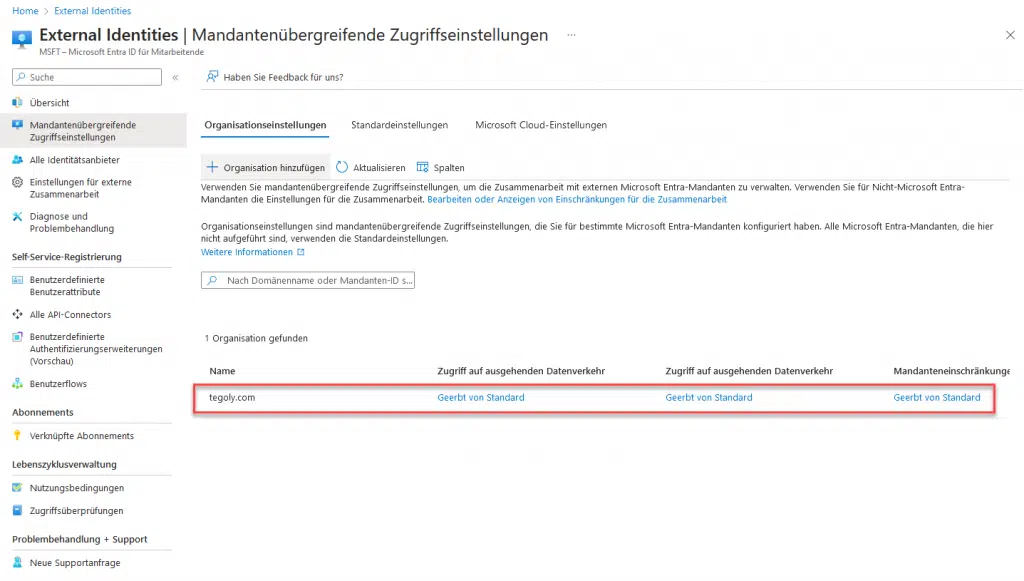
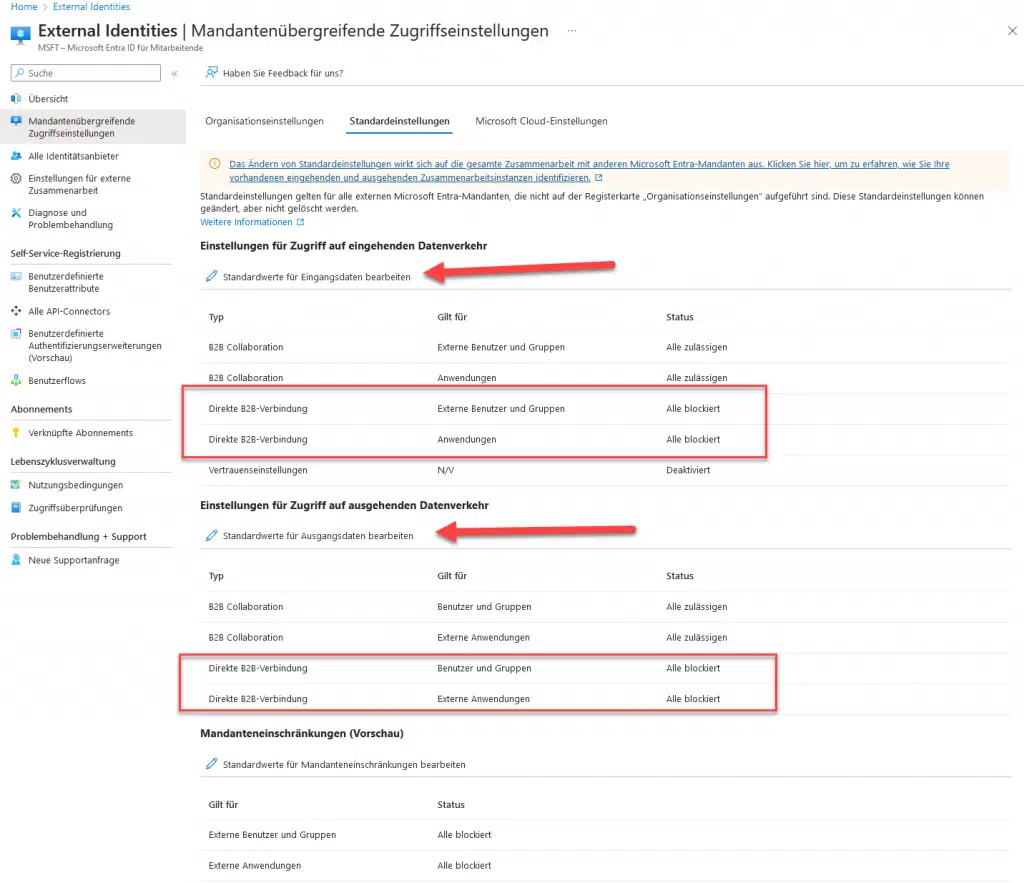
Now you need to set up access for inbound and outbound traffic. Start with Inbound access and go to Edit defaults.
Click on B2B direct connect, then on External users and groups and then on Allow access. Save.
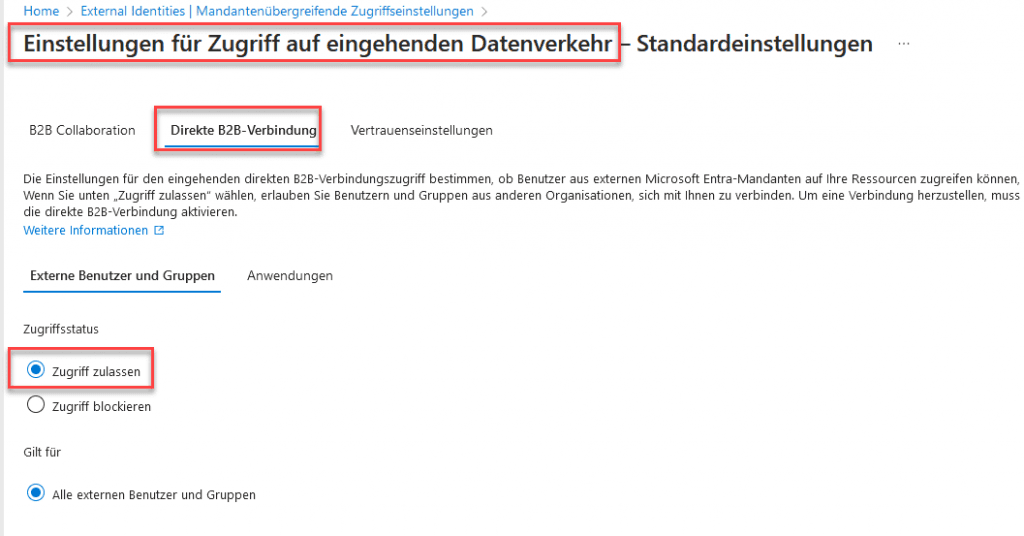
Repeat this for Applications. Save.
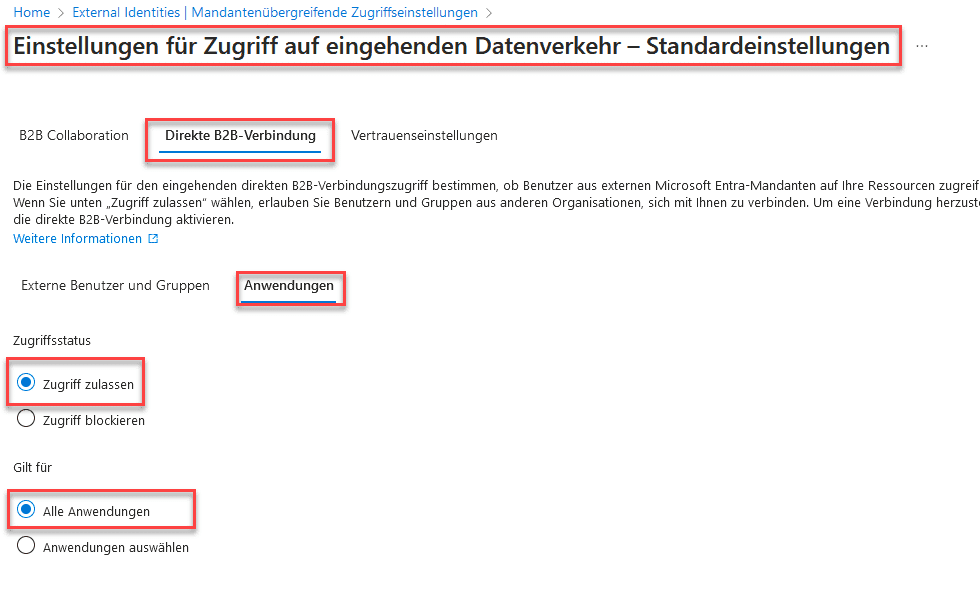
Repeat the entire process for Outbound access.
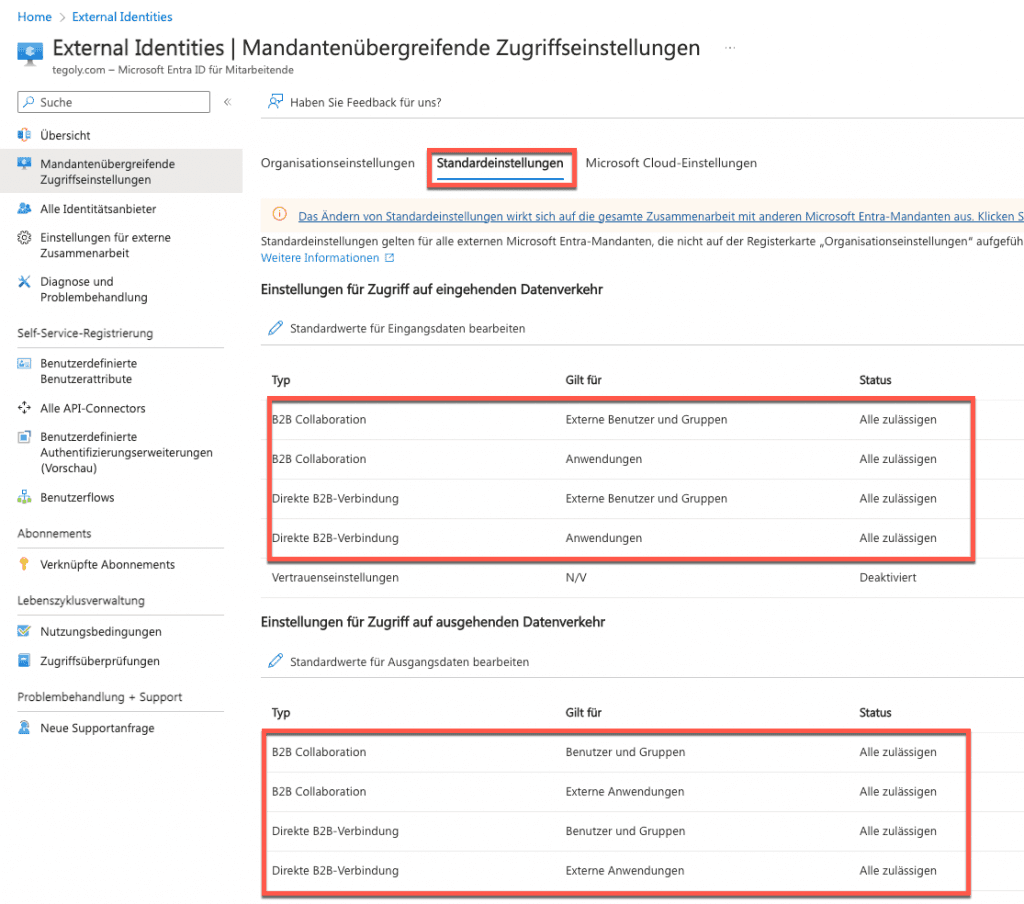
When you are finished, the default settings should look like in the image.
Further information can be found here
Collaborate with external participants in a shared channel (IT Admins) | Microsoft Learn
Now you are finished with the preparations. Now proceed to Part 2.
There we will show you how to create your teams and channels.
Conclusion
Shared Channels in Microsoft Teams are a powerful feature that enables teams to collaborate seamlessly with external users and teams. However, setting them up requires some technical configurations and adjustments. Nonetheless, by following the steps outlined above, you can easily integrate Shared Channels into your workflows and ensure seamless collaboration both inside and outside of your enterprise.
What are Shared Channels?
Shared Channels are channels that teams inside and outside of your organisation can use together. This means that users from two different teams can access the same channel and collaborate in real time. This is particularly useful if you want to collaborate with external teams or clients without having to create separate channels every time.
What is the difference compared to other ways of sharing channels?
Shared Channels are channels that teams inside and outside your organisation can use together. They enable seamless collaboration between different teams and are useful when you want to collaborate with external teams or clients without having to create separate channels each time. Shared Channels are particularly useful when collaborating with external teams as you can ensure everyone is accessing the same channel and staying up to date.
What actions can be performed in Shared Channels?
Here is a list of almost all possible actions that can be performed with Shared Channels.